

docs.json, search across your entire repository, and manage dashboard settings. The agent is also available on dashboard settings pages.
The editor agent makes changes directly in your current branch. Like your own edits, the agent’s changes save automatically but don’t reach your live site until you publish them.
Open the agent
Only editors and admins can open the agent.
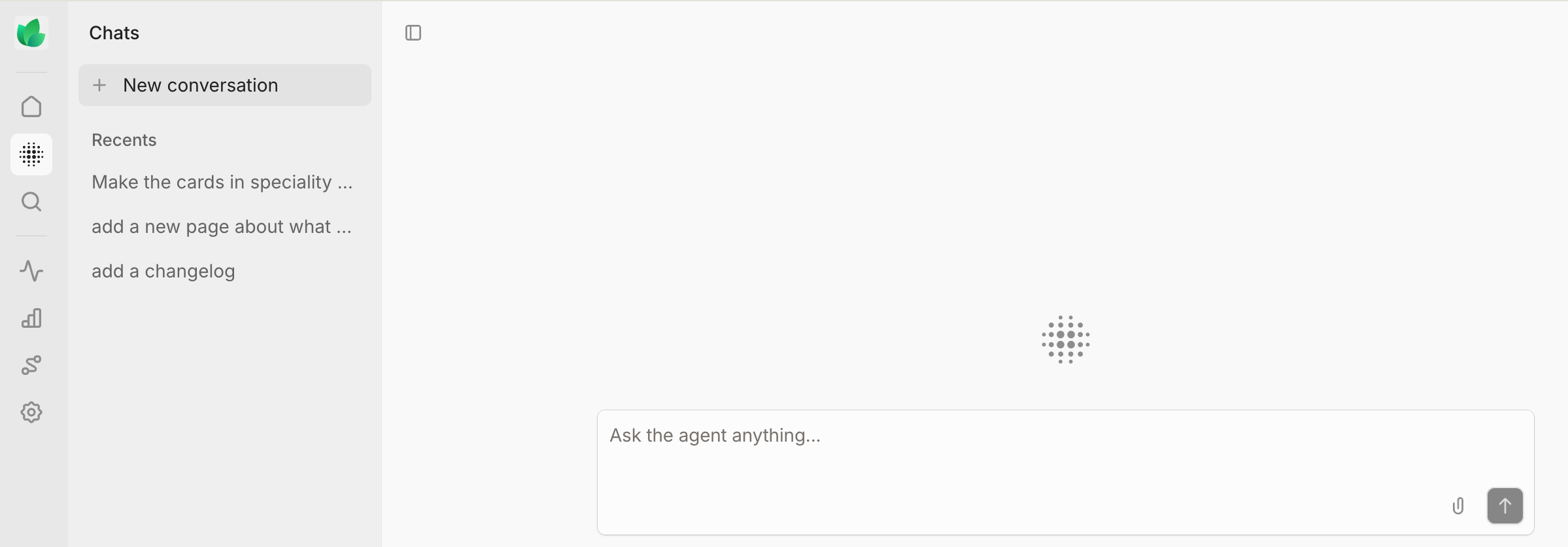
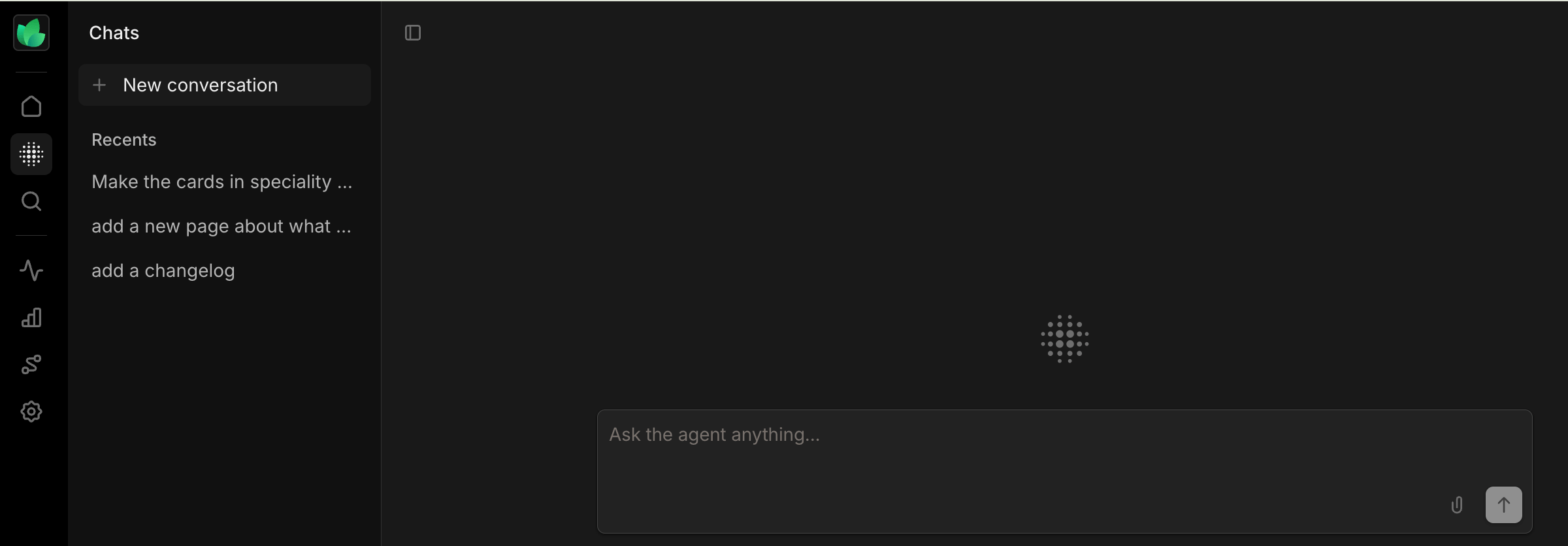
simplify the introduction pagefix all grammar errors across my contentadd a new page that explains authenticationrename every mention of "Acme Pro" to "Acme Team" across all pagesupdate docs.json to add a new group called "Guides"
Choose a model and effort
Click the model name in the chat box to change which model the agent uses and how much effort it puts into a response.- Model: Search for a model or pick one from the Suggested or Other models lists.
- Effort: Choose a higher effort level for complex requests or a lower one for faster responses. The available levels depend on the model, and some models don’t support effort levels.
Attach files
Click the paperclip icon in the chat box, or drag and drop files onto the panel. The agent reads attached files as context for your request. Supported file types:- Images: JPG, PNG, GIF, WebP, SVG
- Documents: PDF
- Code and text:
.js,.ts,.jsx,.tsx,.mdx,.md,.json,.yaml,.html,.css, Python, Go, Rust, Ruby, Java, Swift, C, C++, SQL, shell scripts, and more
Ask for comments and suggestions
The agent edits content directly by default. To get feedback without immediately changing the page, explicitly ask the agent to review the page, leave comments, or make suggestions.- Suggestions propose a specific replacement that you can accept or reject. The original text remains visible with a strikethrough until you decide, and the agent can include an explanation in the suggestion thread.
- Comments leave feedback or a question anchored to specific text without changing the page.
review this page and leave suggestionscomment on anything that needs more contextsuggest ways to make the introduction more concise
Work with existing feedback
The agent can read the open comments and suggestions on a page, including replies, and reply to them. Ask it to summarize feedback, act on it, or respond to it. For example:what feedback has been left on this page?apply the changes requested in the open commentsreply to each comment with what you changed and resolve the thread
Review what the agent changed
A file changes list appears in the chat as the agent works. Expand it to see every file modified in the session, and click any file to compare the changes against the original in diff view. To revert the agent’s edits, click Discard changes next to a file or click Discard all to discard every change from the session. To revert the changes from a single response, click Undo changes on that message. Click Redo changes to restore it.What the agent can do
Edit pages
The agent can write, rewrite, expand, and reorganize content on any page. It reads your existing content to match your style and structure.Search and navigate your content
The agent can search across your entire repository, not just the page you have open. Use it to find information, check for inconsistencies, or verify that content exists before adding it.View images
The agent can view JPEG, PNG, GIF, and WebP images on your pages. This includes published images, images you uploaded on your current branch, and images on private pages you can open. Prompt the agent to describe images, write alt text, or check whether screenshots match the surrounding content. The agent can’t view SVG files or images hosted on other sites. Example:write alt text for every image on this page
Update navigation and docs.json
The agent can add, rename, reorder, and delete navigation elements. These are the same changes you’d make manually in the navigation panel. It can also updatedocs.json configuration directly, including adding new groups, adjusting settings, and configuring redirects.
Example: add a "Quickstart" group under the Getting Started tab and move the quickstart page into it
Run bash commands
The agent can rungrep, rg, and other bash commands against your repository. Use this for bulk operations that span many files.
Example: find every page that mentions the deprecated /v1/auth endpoint
Configure your site (code mode)
For requests that go beyond editing pages (setting up authentication, managing workflows, or changing project settings), the agent switches into code mode. It writes and runs a script against your Mintlify dashboard on your behalf. Code mode respects your dashboard permissions. If you don’t have access to a setting in the dashboard, the agent can’t change it either. Example prompts that use code mode:enable JWT authentication for my sitecreate a workflow that updates my site when I merge a PRadd a custom domain
Use connected integrations
Integrations require an Enterprise plan.
- Shared integrations are available to everyone in your organization.
- Personal integrations use the account connected by the teammate chatting with the agent. For example, a Google Drive search uses your own Drive connection.
update the migration guide based on the latest Jira issuecheck what the Notion launch brief says about availability and add it to the release notes page
Ask about your analytics
The agent can answer questions about your documentation’s traffic, search, assistant, and feedback data. The agent returns information in writing, as a chart, or as a ranked list. Use the agent to request specific explanations, compare page performance, or investigate changes in traffic. Example prompts:what are the top 5 user agents hitting my site?which pages do AI agents visit more often than humans?what are people searching for and not finding results for?graph traffic for the REST API introduction page over the last month
Read your Slack workspace
If you install the Mintlify Slack app, the editor agent can read your Slack workspace for context while it researches or answers your questions. The editor agent has read-only access. It can’t post messages, add reactions, or perform other actions in Slack. Ask the agent to use Slack in a request. For example:check the #engineering channel for context on the new auth flowsummarize what the team decided about rate limiting yesterday
Continue an automation run
When you open the editor from an automation’s Slack or email notification, the agent panel opens automatically with context on what the automation did. An Updated pages card at the top of the chat lists every page the automation modified. Click any page to open a diff view. The agent has context on the automation’s prompt, a summary of the changes it made, and which pages it modified. You can ask it to refine or extend the automation’s work without re-explaining the background. For example:The new section on rate limits is too long. Trim it to three sentences.
Session history
Click the Show agent history button in the panel header to see your previous chat sessions. Sessions are grouped into Today, Last 30 days, and Older. Each session shows its first message as the title and when it started.- A spinner replaces the time while the agent is still working on a session.
- A blue dot and bold title mark a session with agent messages you haven’t read.
- Sessions on a branch other than your deploy branch show the branch name.