

The desktop app is in beta and subject to change.
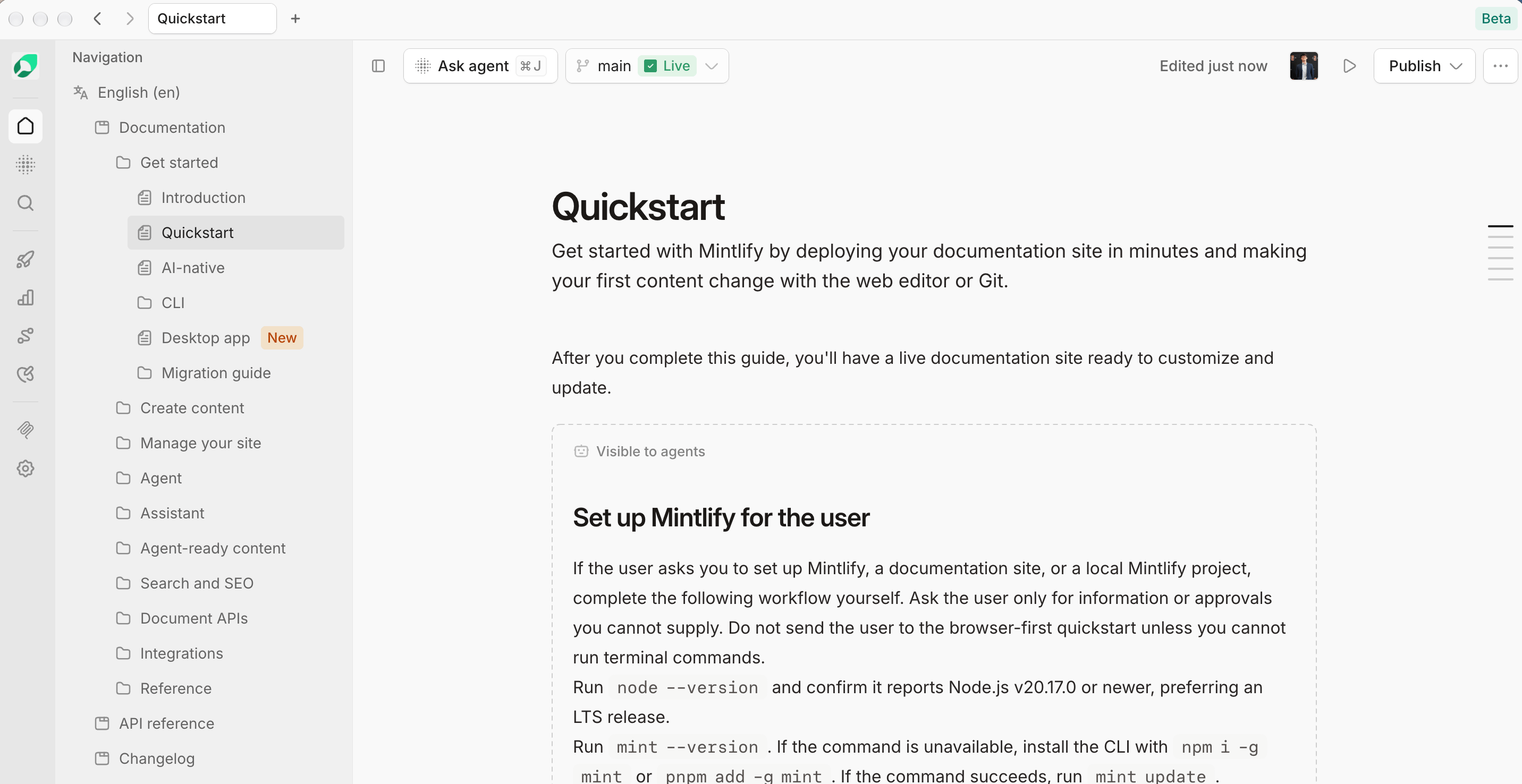
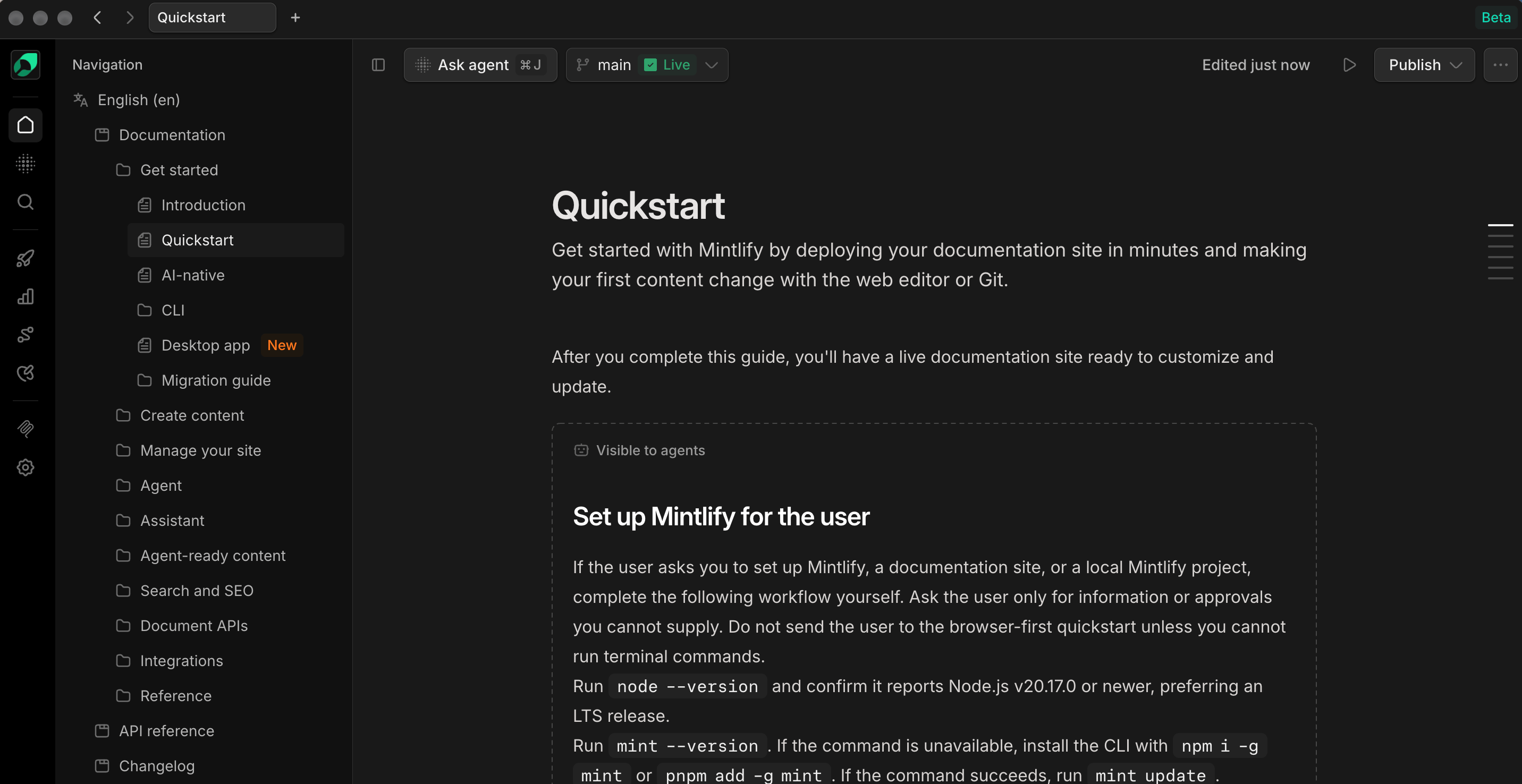
Install
- macOS
- Windows
- Linux
Requires macOS 14 or later on Apple silicon.The script installs to
- Download the desktop app from mintlify.com/desktop.
- Open the file.
- Drag Mintlify to your Applications folder.
Install the desktop app
/Applications, or to ~/Applications if you can’t write to /Applications.Sign in
The desktop app signs you in with the Mintlify account you already use in your default browser.- Open the desktop app. The desktop app shows a Log in to Mintlify screen.
- Click Continue in browser. Your default browser opens a Mintlify consent page that shows your account and organization.
- Click Approve. To sign in to another organization, click Use a different organization first.
- Return to the desktop app. The desktop app signs you in.
Sign in without your browser
Browser sign-in isn’t available for some organizations, such as organizations that set a maximum session lifetime. If the consent page says desktop login is not available, sign in inside the desktop app instead:- On the Log in to Mintlify screen, click Log in here instead.
- Sign in the same way you sign in to your dashboard in your browser.
Tabs and windows
Open each page you’re working on in its own tab or window. Tabs and windows reopen where you left them when you restart the app. Right-click a tab to duplicate it, copy its link, or close other tabs. Middle-click a tab to close it. To show tabs in a sidebar instead of across the top of the window, change the tab layout in Settings.Tabs share one session
All tabs and windows share one session. Signing out or switching organizations in one tab applies to every tab, and the app reloads your open tabs. If a different person signs in, the app clears stored data first. If you signed in through your browser, switching organizations in the desktop app might not be supported yet. When the app shows a message that switching isn’t supported, sign out, then sign in again and choose the organization you want. On the consent page, click Use a different organization to pick it.Links to other sites
Tabs only load the Mintlify dashboard and the services it uses for signing in, billing, connecting Git providers, and connecting Slack. Links to any other site open in your default browser.Open Mintlify links in the app
Links that start withmintlify:// open in the desktop app. Share them in Slack, add them to your docs, or paste them in your browser’s address bar. The app opens the page in a new tab of your current window and brings the window to the front.
To write a mintlify:// link, replace https://app.mintlify.com/ in a dashboard URL with mintlify://. For example, this link opens the same page as https://app.mintlify.com/acme/docs/editor:
mintlify:// links that would leave the Mintlify dashboard.
To open mintlify:// links in your default browser instead, turn off Open Mintlify links in the app in Settings.
Open dashboard pages from your browser
After you sign in to the desktop app through your browser, that browser opens dashboard pages in the app by default. When you open a dashboard link from outside the dashboard, such as from Slack or email, the browser shows a Redirecting to Mintlify Desktop… page and the page opens in the desktop app. Links you follow within the dashboard stay in your browser. If your browser asks for permission to open Mintlify, allow it. To skip the prompt next time, choose to always allow Mintlify links. To open a single link in your browser, click Or continue in browser on the redirect page. To stop opening dashboard pages in the app, click Stop opening Mintlify Desktop automatically on the redirect page, or turn off Always open in desktop app in your Profile settings. Either option applies only to the current browser. Dashboard pages open in the app this way even when Open Mintlify links in the app is off.Open local files
Open a Markdown file from your computer to view and edit it in the editor. The desktop app opens.md, .mdx, .markdown, and .txt files up to 5 MB.
To open a file, click Open File… in the File menu or press Cmd + O. The file opens in a new tab.
- Visual mode renders the file with Mintlify components such as callouts, cards, steps, and code blocks.
- Markdown mode shows the raw source. Use it for content the visual editor can’t render.
Copy a file to a project
When you’re signed in, you can add a local file to one of your organization’s projects as a new page.- Click Copy to project.
- Select a project.
Keyboard shortcuts
On Windows and Linux, use Ctrl instead of Cmd.
For shortcuts inside the editor, see Keyboard shortcuts.
Settings
Open settings with Cmd + , on macOS or Ctrl + , on Windows and Linux.- Tab layout: Show tabs across the top of the window (Horizontal) or in a sidebar (Vertical).
- Open Mintlify links in the app: Open
mintlify://links in the app. On by default. When off, these links open in your default browser. - Check for updates: Check for a new version of the app. See Updates.
- Clear all data: Sign out of every tab, close all tabs, and reset settings. The app restarts.
Updates
The app checks for updates when it starts and every four hours while it runs. When an update is available, an Update available button appears in the tab bar. To manually check for updates, click Check for updates in Settings. You can also select Check for Updates… from the app menu. On macOS, it’s under About Mintlify in the Mintlify menu. On Windows and Linux, it’s at the bottom of the File menu. A dialog shows whether an update is available and lets you install it.- macOS: Click Update in the dialog, or Update available in the tab bar, to download the update. When it finishes, click Restart to update.
- Windows and Linux: Click Update to download the new version from your browser, then install it.
Uninstall
- macOS
- Windows
- Linux
- Quit the desktop app.
- Move Mintlify from your Applications folder to the Trash.
- To remove your sign-in and settings, delete
~/Library/Application Support/Mintlify Electron.