

The assistant requires a Pro or Enterprise plan.
Enable or disable the assistant
On the Assistant page in your dashboard, click the status toggle to enable or disable the assistant for your site.Add sample questions
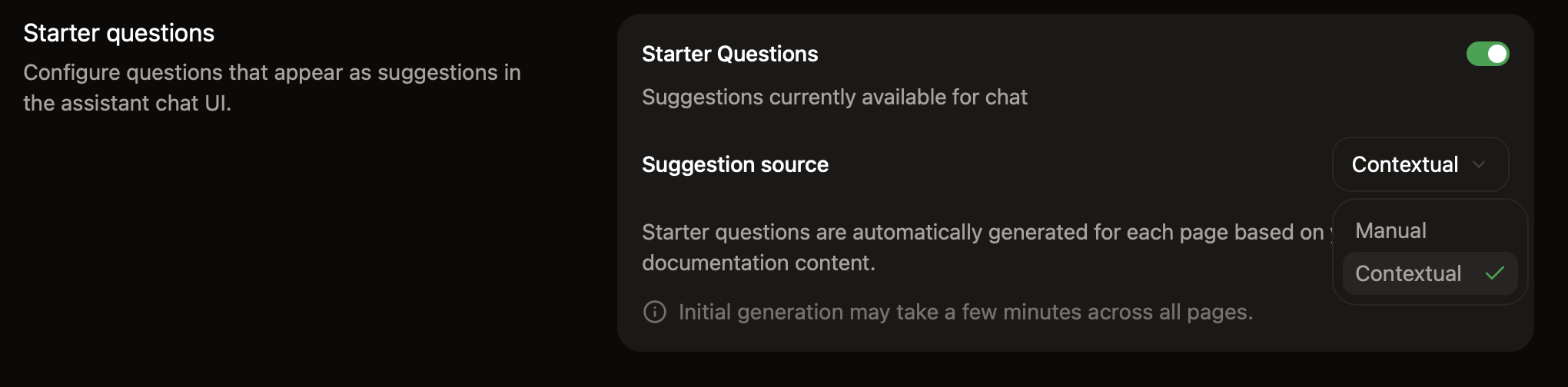
Help your users begin conversations with the assistant by adding starter questions. The assistant can generate page-specific questions based on the page a user is viewing, or you can add persistent questions that are available across pages. You can add up to three starter questions. Click Ask Assistant for recommended questions based on your documentation.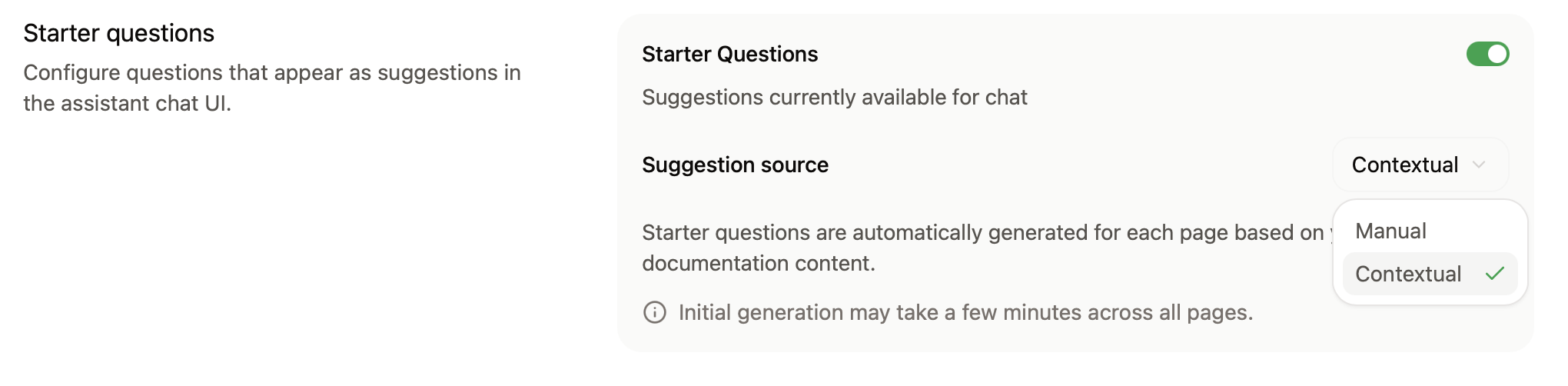
Choose where unanswered questions go
When the assistant can’t answer a question, it can send the user to your support or sales team by email, a link to your help center, or a ticket in Plain or Zendesk. See Route questions to your team.Bot protection
In the Bot protection section, enable invisible CAPTCHA to protect your assistant from automated abuse. The bot protection is privacy-friendly and invisible to nearly all visitors. To enable bot protection:- Navigate to the Assistant page in your dashboard.
- In the Bot protection section, toggle Invisible CAPTCHA on.
If you use custom Content Security Policy headers, you must include
hcaptcha.com and *.hcaptcha.com in your allowlist.Test the assistant
The assistant is available in your local preview when you sign in with the CLI. Use local preview to test answers and custom instructions inAssistant.md while you write.
- If you haven’t already, install the CLI with
npm i -g mint. - Run
mint loginto authenticate. - Run
mint devto start the local preview.