

Base is in beta and subject to change.
How a base differs from docs
A base is one of two project types. Because a base has no site, settings that only apply to a site, such as custom domains, the assistant, exports, and analytics, aren’t available for a base. Some AI features are not available for a base, including Autopilot and automations. You organize a base with only pages and groups. You cannot use tabs, anchors, versions, languages, or other navigation elements.Where your pages are stored
The editor sidebar in a base contains three types of pages.- Teamspace: Pages your entire organization shares. Mintlify stores Teamspace pages as MDX files in a Git repository and commits your edits automatically.
- Personal: Private pages for your drafts or content that’s just for yourself. Private pages aren’t stored in Git. They stay private to you unless you share them with teammates. If you want to share a private page, open its options menu, select Move, and choose Teamspace or a group inside it.
- Shared with me: Pages that teammates shared with you directly.
How people and agents contribute
Your team can update a base wherever they work:- Editor: Write and organize pages in your browser or the desktop app, with help from the agent.
- MCP: Connect Claude, ChatGPT, Cursor, or another AI tool to the admin MCP to read, search, and edit your base from a conversation.
- Slack: Ask the Mintlify agent in Slack questions that it answers from your base, or ask it to update pages.
- Git: Clone your base’s repository and edit the MDX files with any editor or coding agent.
Share a page to the web
On Pro and Enterprise plans, you can share a base page with people outside your organization through a public link. Anyone with the link can view the page without signing in. They can’t edit it.Allow public links
Public links are off by default. An admin must turn them on before anyone can share a page.- Go to your Security settings.
- In the Sharing section, turn on Allow public links.
Share a page
You can share a Teamspace page if you have the editor or admin role. You can share a private page if you have Full Access to it.- Open the page in the editor.
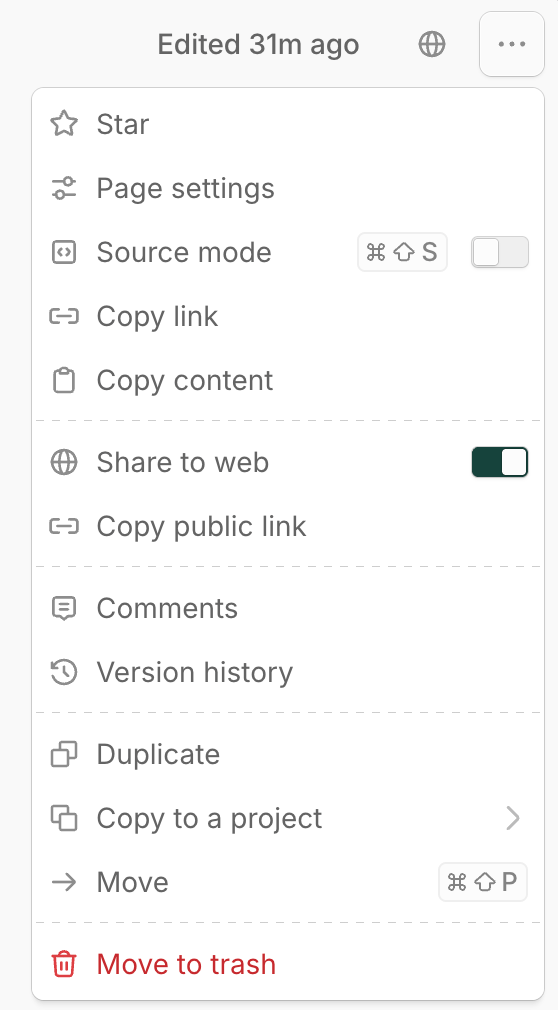
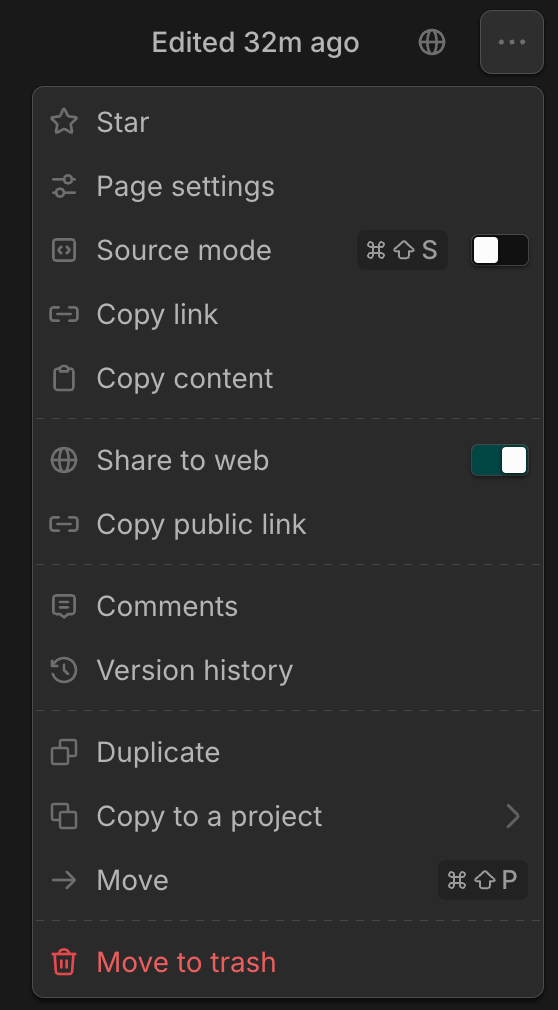
- Open the page options menu.
- Turn on Share to web.
- Click Copy public link.
.md to the end of the public link to view it or request the link with an Accept: text/markdown header.
Stop sharing a page
- Open the page options menu.
- Turn off Share to web.
- Click Stop sharing to confirm.
Features and plans
Bases have their own Starter, Pro, and Enterprise plans, separate from the plans for your docs projects. To view your base’s plan, open your base and go to your Billing settings. To upgrade to Pro or Enterprise, an admin can click Contact us on the plan or contact sales.
Every plan includes the editor, Git sync, and the admin MCP.
Pro also includes the agent and public links.
Enterprise includes the Pro features, plus SSO, SCIM, role-based access control, and additional features. See the pricing page for more information.
Get started
Set up a base
Create a base, invite your team, and connect your AI tools.