5 things you didn't know you could do in the Mintlify web editor
6 minutes read
Peri Langlois
Head of Product Marketing
Share this article
Peri Langlois
Head of Product Marketing
Share this article
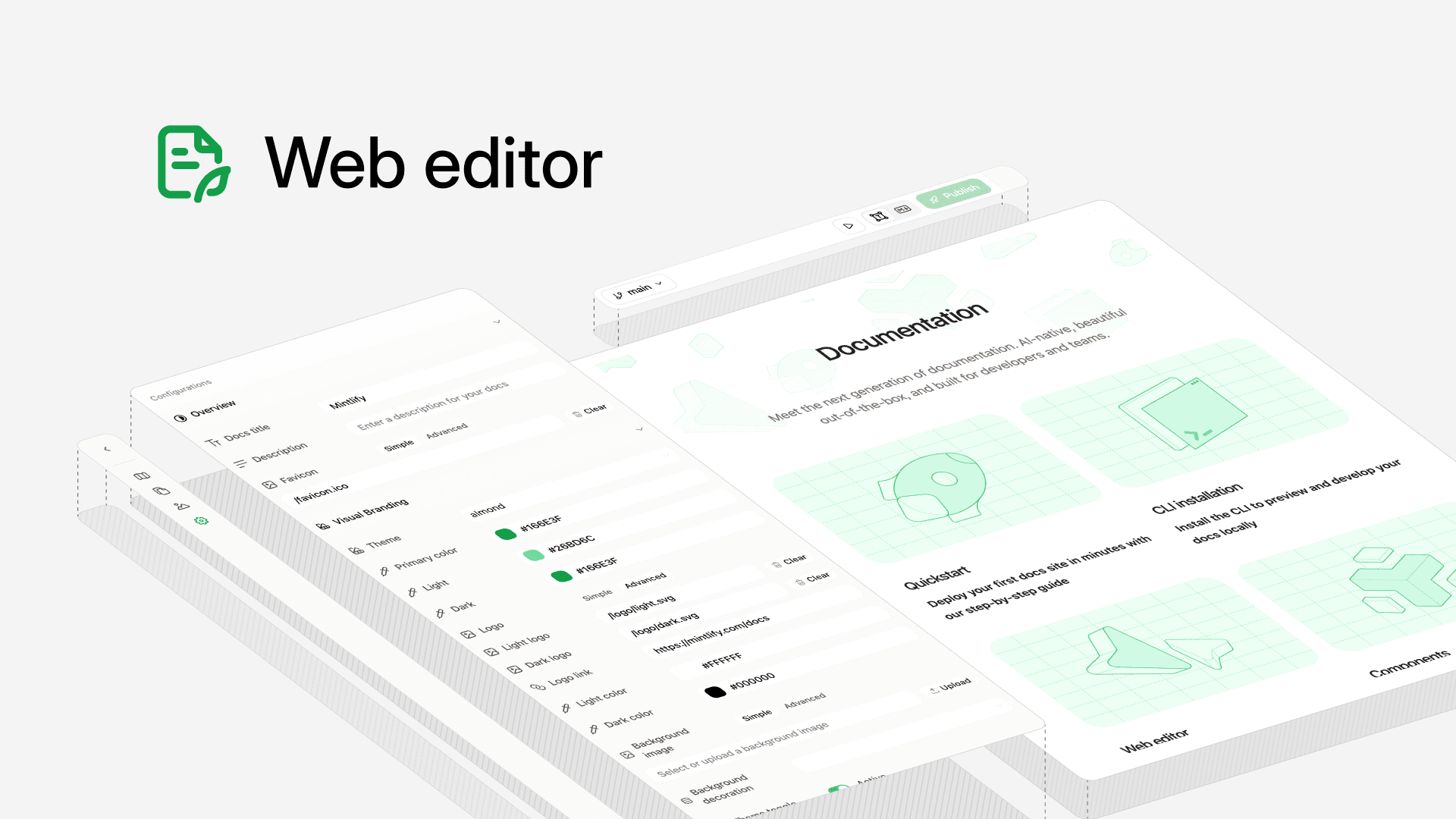
Your docs shouldn't depend on one person with an IDE. The Mintlify editor has suggesting mode with comments, drag-and-drop nav restructuring, inline AI that writes and auto-structures content, live preview without deploying, and seamless visual/Markdown switching -- all in the browser, all designed to get more of your team contributing.
The best documentation comes from teams. It builds on the knowledge from engineers who know the implementation details, PMs who understand the use cases, support teams who hear the same questions every day, marketing teams who understand docs are an important surface area for conversion, and writers who bring it all together. The problem is that some of those people don't want to open a code editor, clone a repo, or write MDX to contribute a paragraph.
That's what the Mintlify web editor is for. It gives everyone on your team a way to create, edit, and review docs directly in the browser, without an IDE, Git commands, or deploy pipelines. And it can do a lot more than most teams realize.
Here are five features that make it easier to get your whole team involved.
1. Suggest changes without committing them
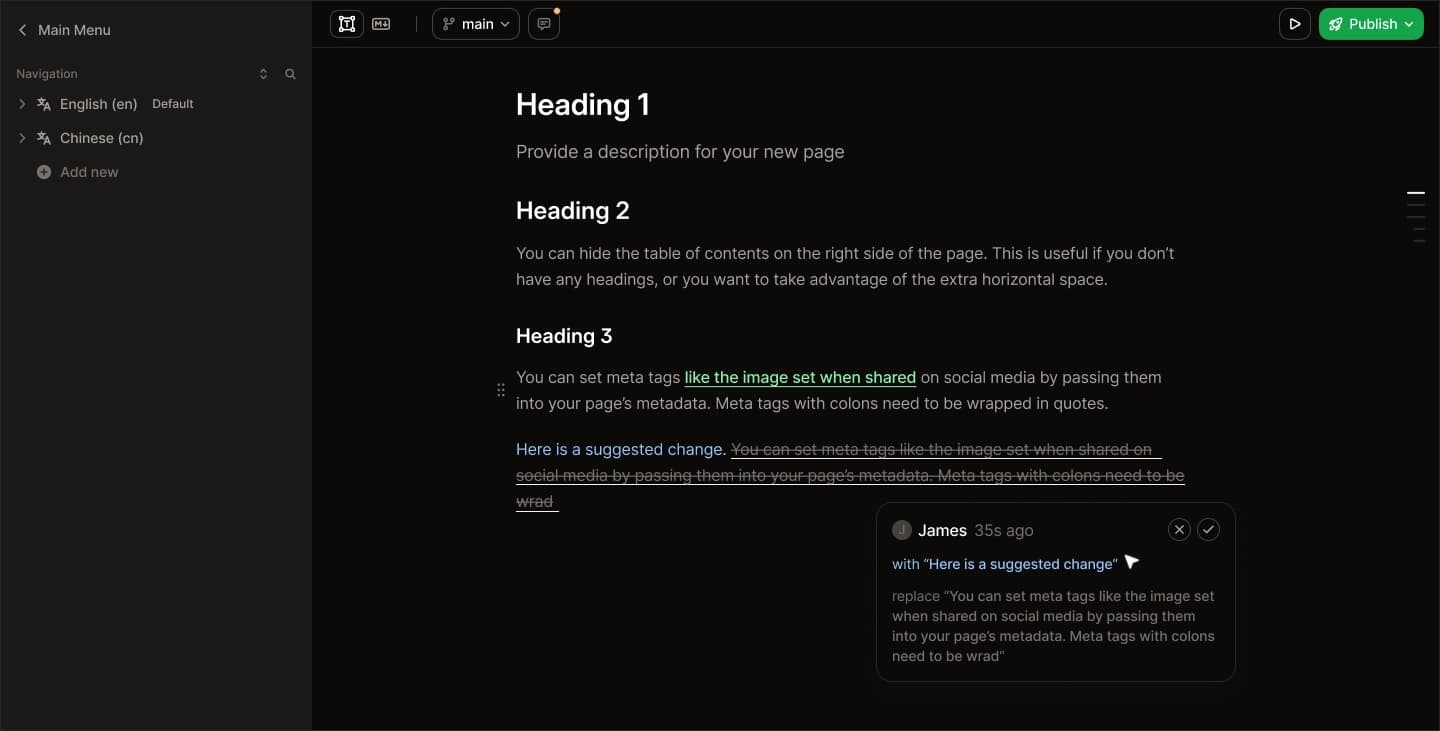
You don't always want to make a direct edit. Sometimes you want to propose a change for someone else to review, like a Google Doc but for your documentation.
The editor has a suggesting mode. Toggle it on, and any edits you make get tracked as suggestions rather than direct changes. Your teammates can review each one, accept it, or reject it. Each suggestion also opens a comment thread, so reviewers can discuss the change in context before deciding whether to merge it. It's the same mental model as "suggest edits" in Google Docs, but it lives right inside your docs workflow, backed by Git.
This is especially useful when subject matter experts want to flag something that's wrong but don't want to be the one to publish the fix. They suggest, the team discusses it in the comment thread, someone accepts or rejects, done. No Slack back-and-forth about which paragraph needs fixing.
How to try it: Look for the suggesting mode toggle in the editor toolbar. Make an edit and you'll see it highlighted as a suggestion with a comment thread attached. Tag a teammate to start a review conversation.
2. Restructure your entire sidebar with drag and drop
Reorganizing your docs navigation usually means editing a config file, reordering entries, and hoping you didn't break the nesting. In the web editor, you can just drag pages around.
The sidebar in the editor is fully interactive. You can drag a page from one group to another, nest it under a different section, or reorder an entire group. The editor handles the underlying navigation config for you and prevents you from nesting elements in invalid ways, so you can't accidentally break your site structure.
How to try it: Open the editor sidebar, grab any page, and move it. Your navigation updates instantly.
3. Use inline AI to write and rewrite content without leaving the page
You've probably used the Mintlify agent (opened in the editor with Cmd+I / Ctrl+I) to generate entire pages or propose changes across your docs. But the editor also has inline AI that works at the paragraph level, right where you're writing.
The inline AI can improve writing, fix grammar, restructure awkward sentences, and tighten up prose. Auto-structure takes a wall of text and converts it into proper Mintlify components, turning a long explanation into accordion groups, breaking a paragraph into a step-by-step guide, or pulling out a callout. Ask AI lets you prompt any custom change: "make this more concise," "rewrite for a non-technical audience," "add an example."
The feature is woven into the editor in a way that makes it easy to reach from wherever you are. You can trigger it four different ways: hit Space on an empty paragraph to start generating content from scratch, select text and use the AI option in the toolbar to rewrite it, click a block's drag handle to open the block menu and apply AI to that section, or type /ai anywhere as a slash command.
How to try it: Switch to visual mode, click into an empty line, and hit Space. Ask it to draft an introduction for whatever page you're on. Then select a paragraph that's too wordy, hit the AI option in the toolbar, and ask it to tighten things up.
4. Preview your changes live without creating a deployment
Most docs platforms make you commit, push, and wait for a build before you can see what your changes actually look like on the live site. Mintlify's editor shows you a live preview as you type.
This isn't a "markdown preview" in the way your IDE does it. It's a real preview of how the page will render on your deployed site, with your theme, your components, and your layout. You see what your readers will see, in real time, without triggering a deployment or waiting for a build pipeline.
For bigger changes where you want to share a preview with your team before publishing, you can create a branch and get a dedicated preview URL (formatted as organization-branch-name.mintlify.app), then send that link to anyone who needs to review it.
How to try it: Open any page in the editor and start typing. The preview updates as you go. For a shareable preview, create a branch first and share the preview deployment URL with your team.
5. Go from Markdown to visual editing (and back) without losing anything
The editor supports two modes: visual and Markdown. Visual mode gives you a rich text experience with formatting controls, component insertion, and the inline AI features mentioned above. Markdown mode drops you into a Monaco-based code editor (the same engine that powers VS Code) with full syntax highlighting and all the keyboard shortcuts you're used to.
The key thing: you can switch between them freely and your content is preserved. Start in Markdown because that's what you're comfortable with, then flip to visual mode to fine-tune the layout or use the AI rewriting tools.
This also means the editor works for everyone on your team, not just developers. Your product manager can edit in visual mode while your engineers stick with Markdown. Same docs, same workflow, different interfaces.
How to try it: Open a page and look for the visual/Markdown toggle in the editor toolbar. Switch back and forth and notice that your content stays intact.
If you haven't used the web editor recently, take five minutes to see what's new.
More blog posts to read
22 UX improvements to the web editor
A round-up of the UX improvements coming to Mintlify's web editor.
May 4, 2026Dmytro Tovstokoryi
Design
Introducing the Mintlify Help Center Starter Kit
Help centers are the first line of defense for customer support. The new Mintlify Help Center starter kit and AI ticket deflection make it faster than ever to launch one.
May 1, 2026Hahnbee Lee
Co-Founder